

How To Set Up A Dual Monitor Desk Setup?
Do you find yourself constantly switching between tabs and windows while working or gaming? Have you ever wished for more screen space without replacing your current monitor? A dual monitor setup might be precisely what you need. It's more than just convenience—it boosts productivity, reduces visual clutter, and gives you a cleaner, more efficient workspace.
Why Go Dual Monitor?
Let's start with the why. Adding a second screen isn't just a trendy tech move—it changes how you work.
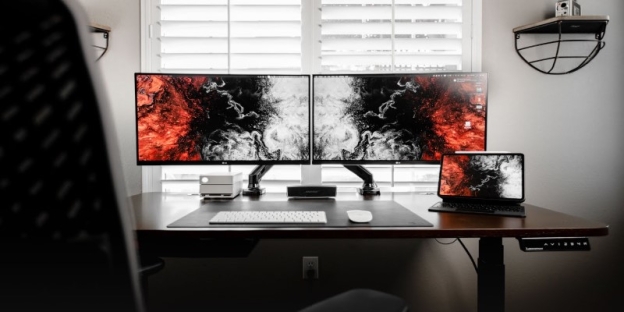
For remote workers and multitaskers, it means attending video meetings on one screen while taking notes or browsing documents on the other. Designers and editors can keep editing tools on one display and full-screen previews on the other. Gamers enjoy maps, chats, or live streams on a secondary screen without having to leave the action.
Research even suggests people using dual monitors can be up to 40% more productive. That’s a big deal when every minute counts.
Choosing the Right Monitors
Before you buy anything, consider how you'll use the setup. Not all monitors are created equal, and you don’t always need two identical screens.
Matching Monitors Vs. Mixed Setups
Ideally, the two monitors should be the same size and resolution. This ensures a smooth appearance across screens, particularly for drag-and-drop actions or extended applications. But it's not a must.
For example, someone who writes or codes might have one vertical monitor and one horizontal monitor. A gamer might use a high-refresh-rate main screen and a basic secondary one for Discord or music controls.
Key Specs To Look For:
- Screen Size: Most people opt for screens ranging from 24" to 27". These sizes offer enough space without overwhelming your desk.
- Resolution: Full HD (1080p) works fine, but higher resolutions, such as 1440p or 4K, can improve clarity, especially on larger displays.
- Refresh Rate: For office work, 60Hz is plenty. Gamers may want 120Hz or higher.
- Panel Type: IPS panels offer superior colour and viewing angles. VA or TN panels are suitable for general use, but may not match in colour if paired with IPS.
How To Physically Set It Up
Now that you have your monitors, it's time to determine how they'll fit on your desk. This part is more than just plugging them in. The goal is to set them up in a way that feels comfortable and looks clean.
Using Monitor Stands Or Arms
Most monitors come with basic stands. These are fine, but they take up desk space and often lack adjustability.
Consider using monitor arms. These clamp to the back of your desk and lift the monitors off the surface. You can easily adjust the height, tilt, and distance, freeing up space for your keyboard, documents, or other gear.
Positioning Your Monitors
Set the primary monitor directly in front of you, so you don't have to twist your neck constantly. The top of the screen should be at or just below eye level. The second monitor should sit right next to it, angled slightly in, so your eyes can move comfortably between the two.
If you're mixing screen sizes or shapes (such as having one vertical), adjust the height and alignment so that the bottoms of the screens line up.
Connecting Your Monitors
Most modern computers support at least two monitors. But it’s smart to double-check what ports your device has.
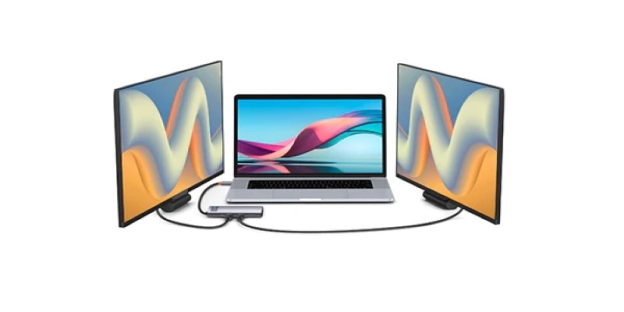
Check Your Ports
- HDMI and DisplayPort are the most common and give good image quality.
- USB-C is becoming increasingly common on newer laptops and can carry both power and video.
- VGA and DVI are older. Still usable, but may limit resolution or refresh rate.
If your PC or laptop doesn’t have two ports, a docking station or USB-to-HDMI adapter can help you expand. For Mac users, some devices need specific adapters (like Thunderbolt to HDMI or DisplayPort).
Configuring Displays In Settings
Once everything is plugged in, go into your display settings:
- On Windows, right-click on the desktop > Display Settings. You’ll see both screens. Drag to arrange their positions and choose if you want to duplicate or extend the display.
- On Mac, go to System Preferences > Displays. Use the “Arrangement” tab to drag the screens into your preferred order.
Make one of them the “Main Display” where your apps and taskbar appear by default.
Keeping Your Desk Organised
A dual monitor setup can look clean or chaotic. A little planning goes a long way in keeping the space functional and neat.
Cable Management
Use cable clips or sleeves to gather the monitor power cords, video cables, and other wires. Feed them down the back of the desk or behind your monitor arm. Some monitor arms come with built-in cable channels.
Keyboard And Mouse Placement
Your keyboard and mouse should be positioned in alignment with your primary monitor, not between it and the secondary monitor. This prevents awkward wrist and neck angles. If you frequently use both screens, consider a slightly curved desk layout to keep everything within comfortable reach.
Lighting Tips
Avoid placing your setup directly in front of a window to reduce glare. A small desk lamp with adjustable brightness can help during late hours without straining your eyes. Monitor light bars are another neat option—they sit on top of your screen and shine downward.
Keeping It Comfortable Over Time
Comfort isn't just about desk space. Working long hours in front of two monitors can negatively impact your posture and focus. Ensure your chair supports your back correctly and that you're sitting at the correct height. Take regular breaks to stand or stretch, and blink often to avoid eye strain.
If your monitors are too bright or emit blue light, consider using Night Mode or blue light filters to reduce eye fatigue.
Ready To Try It?
Once you've set up a dual-monitor workspace, the benefits become apparent quickly. You get more room to think, work, and see the bigger picture. Whether you're working, creating, studying, or playing, two screens give you the space to do more comfortably.
And the best part? You don't need to spend a lot or get fancy gear. A few wise choices and a little planning go a long way.