

How To Convert Files Without Losing Quality? A Detailed Guide
Have you ever tried converting a video, image, or audio file, only to find the result looking or sounding worse than the original? That washed-out photo, grainy video, or muffled audio typically indicates that quality was lost during the conversion process. Let's walk through how you can convert files while preserving their sharpness, clarity, and integrity.
What Causes Quality Loss During File Conversion?
To avoid quality loss, you first need to understand what causes it. Quality typically drops during file conversion due to compression methods, changes in resolution or bitrate, or the use of tools that strip out metadata and other details.
Compression is often the main culprit. There are two types:
- Lossless compression retains all original data and is used in formats such as FLAC (audio), PNG (images), and ZIP (general files).
- Lossy compression reduces file size by discarding parts of the data, often used in MP3 (audio), JPEG (images), and MP4 (video).
When you convert between formats—such as from a high-resolution WAV file to a compressed MP3—information is removed, resulting in lower quality. If you're not careful, multiple conversions can stack up this loss over time.
How To Choose The Right File Format
Each file format has a different purpose. Choosing the wrong one for your goal is a straightforward way to compromise quality. Here's a quick guide:
For Images:
- Use PNG for detailed graphics and transparency.
- Use TIFF if you're working with photography and need full fidelity.
- Avoid converting high-quality images into JPEG unless you're prepared to lose some detail.
For Audio:
- WAV and FLAC are excellent for quality preservation.
- MP3 is OK for casual listening, but it's not ideal if sound clarity is a priority.
For Video:
- MOV and MKV support high-definition quality with less compression.
- MP4 is widely compatible and offers a good balance of quality and size, but it is not ideal for master copies.
Always match your format to the task at hand. If you're uploading to a website, a smaller, compressed format may be more suitable. But if you're archiving or editing, keep it uncompressed.
What Are The Best Tools To Convert Without Losing Quality?
Not all file converters are built the same. Some prioritise speed or file size, while others focus on keeping your files untouched. Here are a few trusted ones:
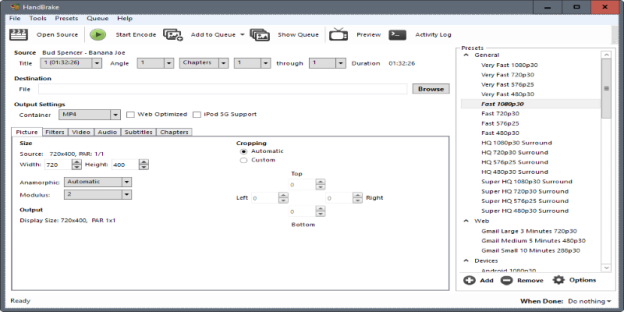
HandBrake (Video)
This open-source tool lets you adjust video resolution, codec, and bitrate. To preserve quality, you can set the constant quality setting to a higher level or keep the original bitrate.
FFmpeg (Video and Audio)
A command-line tool that's extremely powerful. It allows for frame-by-frame conversions with no visible loss when configured correctly. Great for those comfortable with technical setups.
XnConvert (Images)
Supports batch conversion and maintains image quality if used with lossless formats.
Audacity (Audio)
Mainly used for editing, but it can also convert between formats like WAV and FLAC while maintaining quality.
Adobe Media Encoder (Video and Audio)
Offers a lot of control. You can set export settings to match your source quality exactly, avoiding recompression.
When using any tool, ensure that you select output settings that match your input file, particularly in terms of resolution, bitrate, and codec.
Why Bitrate And Resolution Matter So Much
Bitrate is the amount of data processed per second. Higher bitrates mean better quality—simple as that. But they also mean larger files. If you reduce the bitrate when converting, you're shrinking the file but also discarding some of its data.
Resolution affects image and video clarity. Converting a 4K video to 1080p reduces the resolution, which can result in a blurry or pixelated appearance, especially on large screens. Always keep the original resolution if quality is your priority.
When converting, don’t let the software “auto” adjust these settings. Choose to match the original bitrate and resolution unless there’s a specific reason not to.
Should You Ever Use Online Converters?
Online converters are tempting. They’re fast and easy to use. But be careful. Many of them compress your files during upload and conversion without telling you. This happens to save bandwidth and processing time.
Some trusted sites, such as CloudConvert or Convertio, offer options to maintain the original quality, but they may require a paid plan or limit file size. When using these platforms, always review their conversion settings to ensure optimal performance. Look for terms like "no compression," "preserve original," or "lossless output."
Avoid using browser-based tools for large or sensitive files. They can strip metadata, compress files in the background, or even compromise privacy.
Common Mistakes To Avoid When Converting Files
Repeated Conversions
Each time you convert a lossy file (like MP3 to MP3), you lose more detail. Keep a high-quality master copy.
Wrong Tool Or Preset
Many apps default to compressed output. Always double-check export settings.
Not Checking Output Settings
Resolution, codec, bitrate—all these settings affect the result. Make sure they match the original.
Assuming Format = Quality
Saving a blurry image as PNG won't fix it. The format matters, but the quality of the source issues is more important.
Ignoring Aspect Ratio Or Dimensions
Changing formats without maintaining the original aspect ratio can distort or compress your visuals. Always match the output dimensions to the source unless you're intentionally resizing.
Keeping File Quality Intact Takes A Bit Of Planning
Converting files without losing quality is possible, but it doesn't happen by accident. You must be aware of the format you're converting to, the settings you're using, and the tools you trust.
Think of quality loss like water in a leaky bucket. Every time you make the wrong change, a little more slips away. However, with the correct format, careful settings, and reliable tools, you can maintain the sharpness, clarity, and richness of your files just as they were in the original.
Whether you're dealing with audio, video, images, or documents, preserving quality is about making informed choices, not just hitting "Convert."