
What Are The Top Video Editing Tools That Are Easy To Use?
Have you ever wanted to create stunning videos but felt overwhelmed by the numerous tools available? With social media focusing on short clips, reels, and visual storytelling, being able to edit your content is more valuable than ever, whether it's for a vlog, a brand, or personal moments.
The good news is, video editing doesn't have to be technical or time-consuming. The trick is knowing which tools are straightforward to use while still giving you great results. This guide highlights some of the most accessible video editing tools to help you get started, even if it's your first time.
Imovie: A Simple Choice For Apple Users
If you're using a Mac, iPad, or iPhone, then you already have access to one of the most beginner-friendly tools around—iMovie. It’s completely free, and Apple has designed it to feel intuitive from the start. The interface is clean and distraction-free. You can drag and drop clips, trim them, add music, insert titles, and apply transitions without digging through endless menus.
What makes iMovie especially useful for beginners is how it handles effects and templates. Want a cinematic trailer? There's a built-in theme for that. Need to stabilise shaky footage? A few clicks, and you're done.
However, iMovie has its limits. It doesn't offer advanced features like multi-camera editing or motion tracking. However, for someone learning the ropes or creating a quick video with polish, it covers most of the basics.
Clipchamp: Editing Made Easy On The Web
Clipchamp has experienced rapid growth in popularity since being acquired by Microsoft. It's a browser-based editor, which means you don't need to install anything. This makes it ideal for users who want to get started immediately, especially those using Windows or Chromebook devices.
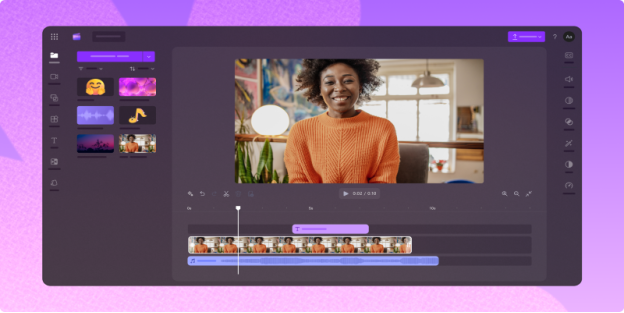
The layout is straightforward, and everything works through drag-and-drop mechanics. There's a stock library of audio, transitions, and video clips, which can help you bring life to your projects quickly. One of its standout features is the built-in screen and webcam recorder, which is great for tutorials or reaction videos.
Even though it's web-based, Clipchamp runs smoothly on most devices. The free version has enough features to get you started, although watermark-free exports and higher-quality output are available only in paid tiers.
Inshot: Mobile Editing Without The Fuss
Looking to edit straight from your phone? InShot is a go-to app for many creators. It’s available on both Android and iOS and is incredibly easy to navigate. Whether you’re trimming clips, adding text overlays, adjusting the speed, or creating slideshows, it only takes a few taps.
One thing that sets InShot apart is its social-media-ready templates. Whether you're posting to Instagram, TikTok, or YouTube Shorts, you can format your videos correctly right from the start. There’s also a range of filters and effects to experiment with, along with music and sticker libraries.
The only downside? Some features and effects are locked behind a paywall, and the free version includes ads. However, if you're editing short videos on the go, it delivers convenience with a minimal learning curve.
Canva Video Editor: More Than Just Design
Many know Canva for its graphic design tools, but its built-in video editor has been quietly gaining attention. It's web-based, and if you're already using Canva for social media posts or presentations, adding video to your projects is easy.
The video editor uses the same drag-and-drop style as Canva's design tools. You can combine clips, insert animated text, drop in stock videos and music, and use stylish transitions—all within a couple of clicks.
It's best for marketing videos, short reels, or educational content. Although it may not handle complex timelines or audio editing as well as professional programs, for many users, that's not the primary goal. Canva's strength lies in its speed and simplicity.
Filmora: Balancing Features With Simplicity
Wondershare Filmora strikes a nice balance between beginner-friendliness and advanced capability. It's designed for people who want to go beyond basic editing without having to study hours of tutorials. The interface is well-organised, and most actions are guided with tooltips and thoughtful prompts.
You can work with multiple tracks, add motion elements, include effects like green screen or screen split, and access an extensive effects library. For users who want to add more visual flair to their videos, Filmora offers creative tools without overwhelming complexity.
It does require a download, and the free version adds a watermark. However, once you get past that, it's one of the more capable all-in-one tools available for users who want to learn and grow their skills without diving into pro-level software.
CapCut: TikTok's Favourite Editing App
CapCut, developed by ByteDance (the creators of TikTok), is tailor-made for short-form video content. It offers fast and flexible mobile editing, making it a favourite among content creators looking to create reels, shorts, or TikTok posts.
Its standout features include automatic captions, trending effects, beat syncing, and a user-friendly interface. The app is continually updated with new features, including AI-based tools that make editing even quicker, such as background removal and face tracking.
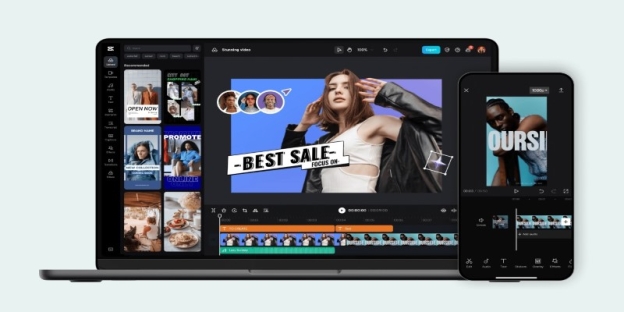
CapCut is entirely free, with no watermark, which is rare for an app offering this level of polish. While it may not be suitable for long video projects, for fast and stylish content, it delivers more than expected.
Adobe Premiere Rush: Light Version Of A Powerhouse
For those who’ve heard of Adobe Premiere Pro but find it a bit intimidating, there’s Premiere Rush. This is Adobe’s answer to creators who want something quicker and easier.
Premiere Rush is designed for fast edits, especially for sharing on YouTube or social platforms. It syncs across devices, allowing you to start a project on your phone and complete it on your desktop. You can drag clips, trim them, add titles, and apply preset colour filters.
Since Adobe makes it, there's room to grow. Once you feel more confident, you can eventually switch to Premiere Pro and carry over your learning.
The only drawback is the export limitations in the free version. However, for those invested in Adobe's ecosystem, it serves as a good stepping stone.
Choosing The Right Editor For You
If you're a complete beginner working on a Mac, iMovie is probably the easiest place to start. For mobile editing, InShot or CapCut are hard to beat, especially if your focus is on creating quick and engaging content. If you need more customisation and control without the overwhelming features of professional tools, Filmora or Clipchamp might be a better fit. And if you're someone who already uses Canva or Adobe products, their built-in video tools are excellent for expanding your capabilities.
Regardless of which one you choose, the most crucial part is getting comfortable and enjoying the process. Video editing isn't just for professionals anymore—it's a skill anyone can learn and use. Whether you're working on a personal project, launching a channel, or simply experimenting for fun, there's a tool available that makes it easy to get started.