
Why Is Your Laptop Overheating, And How Can You Fix It?
Have you noticed your laptop getting unusually hot, even with just a few tabs open? Perhaps it's slowing down or shutting off randomly. If your device is heating up often, it's more than just uncomfortable—it could lead to long-term damage. So, why is it happening? And what can you do to rectify the situation? Let's explore practical ways to cool down your laptop and keep it running smoothly.
What Causes A Laptop To Overheat?
Laptop overheating is typically associated with inadequate airflow and excessive workload. Unlike desktops, laptops are compact. That tight design limits ventilation, making it easier for heat to build up. Here are a few common reasons:
Blocked Vents And Dust Buildup
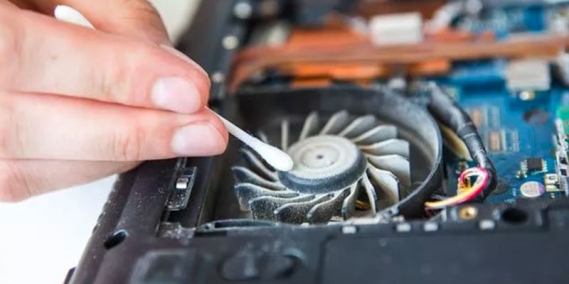
If your laptop fans are working overtime and still can’t cool things off, dust may be clogging the vents or covering the internal components. That buildup can stop air from flowing properly, trapping heat inside.
High CPU And GPU Usage
Running demanding apps—like video editors, games, or software that crunches data—can push your processor to work harder. That creates more heat, especially when done for long periods.
Old Thermal Paste
Thermal paste is what transfers heat from your CPU to the heat sink. If it’s dried out or not applied well, heat won’t move efficiently, and your laptop will run hotter than it should.
Poor Laptop Positioning
Placing your laptop on a soft surface, such as a bed, cushion, or even your lap, can block the bottom air vents. Without airflow, the internal temperature rises quickly.
Background Processes
Even when you're not doing much, your laptop could be running several apps or updates in the background. This consumes system resources and contributes to heat buildup.
How Do You Know If Your Device Is Overheating?
You’ll feel it, of course—your hands may get warm just resting near the keyboard. But there are more signs:
- Fan noise is louder than usual, and is running constantly
- Apps or browser tabs become slow or unresponsive
- The laptop randomly shuts down
- The bottom panel becomes too hot to touch
- The battery drains faster than normal
- You see error messages about temperature or performance
You can also use monitoring software, such as Core Temp, HWMonitor, or Macs Fan Control, to check your laptop's internal temperature. If it consistently reaches temperatures above 85–90°C under light use, that's a warning sign.
Can You Fix a Laptop That Overheats at Home?
Yes, in many cases, you can bring the temperature down yourself without needing to replace parts or visit a technician. Here’s what can help:
Clean The Vents And Internal Fans
If your laptop hasn't been cleaned in a while, dust is likely the main issue. Use a can of compressed air to blow dust out of the vents. Be sure to do this while the laptop is turned off and unplugged from the power source. If you're confident opening the device, clean the fans and heat sink more thoroughly with a soft brush or cotton swab.
Note: Opening the laptop may void your warranty. Please refer to your manual or support site for more information.
Use A Cooling Pad
Cooling pads are external stands with built-in fans. They raise your laptop off the surface and add airflow underneath. While not a cure-all, they can lower the operating temperature by a few degrees, which is beneficial during long work or gaming sessions.
Elevate The Laptop
You don't have to buy extra gear. Propping your laptop on a stand, a few books, or a small object to raise the back edge can help. This improves airflow under the machine, making cooling easier.
Adjust Performance Settings
Go to your power settings and switch to a balanced or power-saving mode. This limits the CPU's maximum usage and reduces heat generation. You can also turn off startup programs and background apps to reduce unnecessary processing.
In Windows, go to the Task Manager → Startup Tab and turn off programs you don't need.
On macOS, check System Settings → General → Login Items.
Check For Malware
Some malware strains silently push your laptop to work harder, maxing out CPU usage and generating excess heat. Run a full system scan using a reliable antivirus program to rule out this hidden cause.
Should You Replace The Thermal Paste?
If your laptop is older than 2–3 years and has never had its thermal paste replaced, doing so can make a noticeable difference. Old paste becomes dry and flaky, resulting in inefficient heat transfer between the processor and the heat sink.
Replacing it involves opening the laptop, removing the heatsink, and applying a fresh layer of thermal compound. If you're comfortable doing this and the warranty has expired, it’s worth considering. Otherwise, get it done by a technician.
When Is It Time To Call A Professional?
If you’ve tried the cleaning, elevated airflow, and software tweaks, but your laptop still heats up quickly, it might be a deeper hardware issue:
- The internal fan may have failed
- The heatsink could be loose or misaligned
- Thermal paste might have worn off entirely
- There could be a faulty sensor or motherboard component
In these cases, continued use could lead to damage. For example, overheating can cause permanent harm to the motherboard or shorten battery life. Taking the laptop in for servicing can prevent costlier repairs later.
Tips To Prevent Overheating Long-Term
It’s not just about fixing the problem. Small habits can help you prevent overheating from becoming a regular issue.
- Keep your laptop on hard, flat surfaces
- Avoid working on beds, cushions, or rugs
- Shut it down when not in use instead of letting it sleep for days
- Clean the vents once every few months
- Use cooling software to keep tabs on internal temperatures
- Avoid multitasking beyond your system’s limit
- Use lightweight browser extensions and close unused tabs
- Stay in a cooler environment during long work sessions
Getting Your Laptop Back To Normal
Overheating is common, but it doesn't have to be permanent. With some cleaning, better habits, and simple tools, you can lower the temperature and extend your laptop's lifespan. Stay alert to the warning signs and don't ignore those warm palms or loud fans. A cooler laptop means smoother performance, fewer slowdowns, and more years of reliable use.